Prevent Your Child From Leaving The App On Iphone
posted in Family & Kids on 4/3/2014
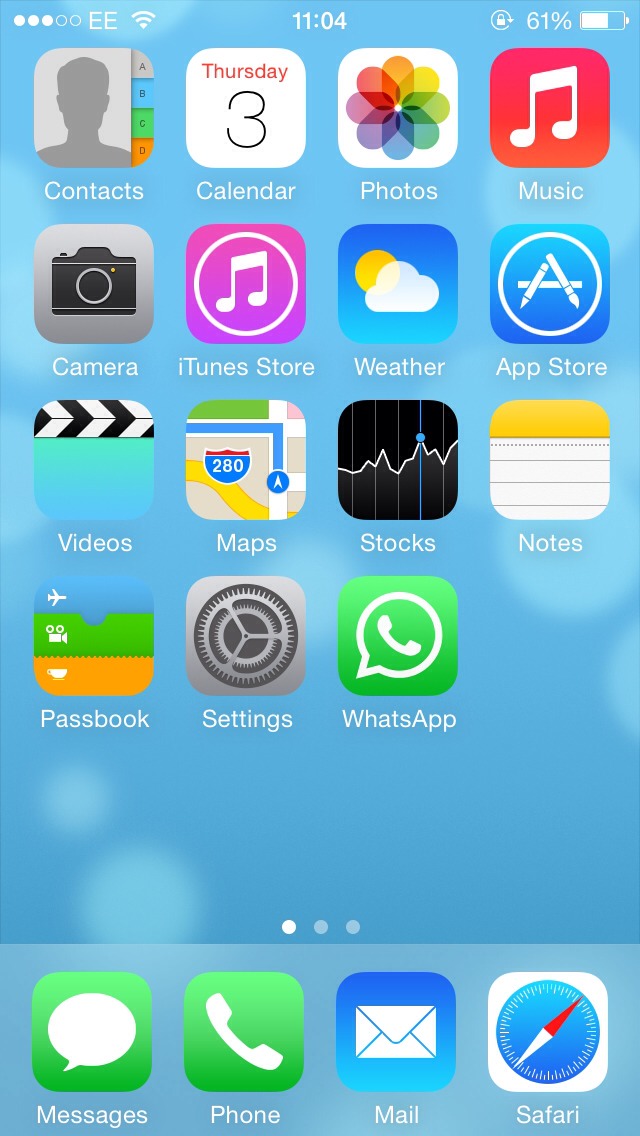
On your home screen go into settings
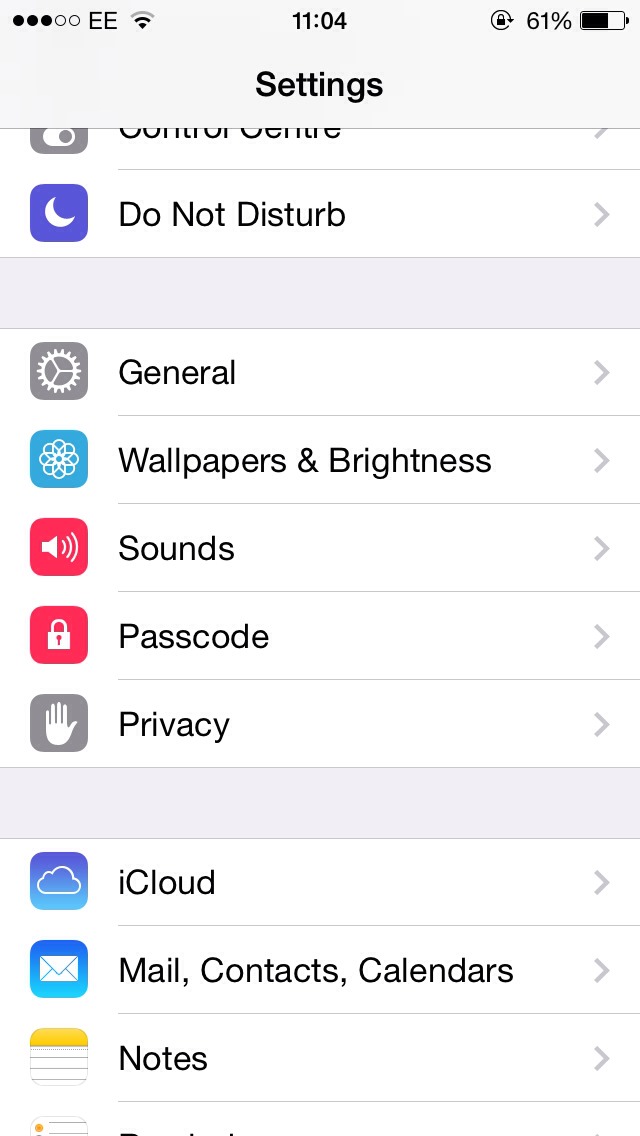
Go into general
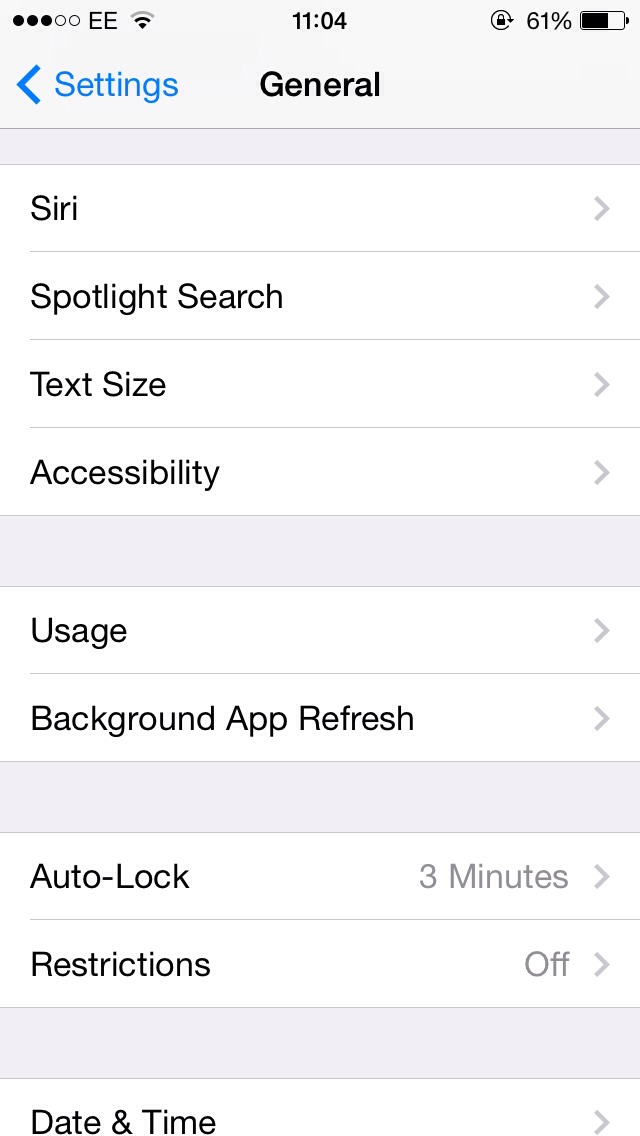
In general select accessibility
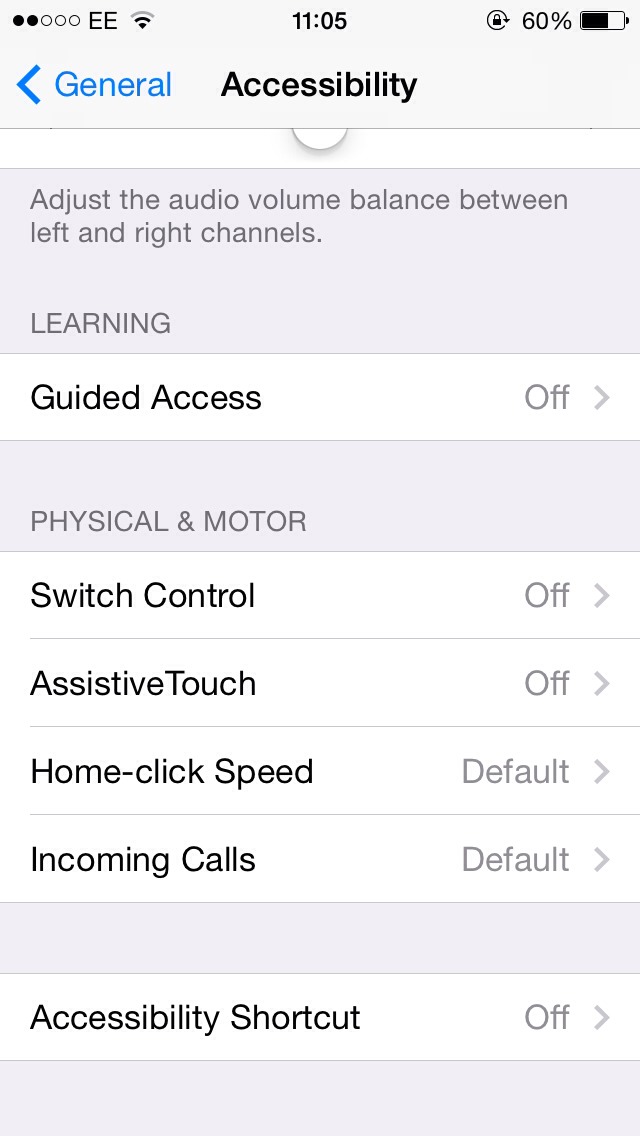
Scroll down and select guided access
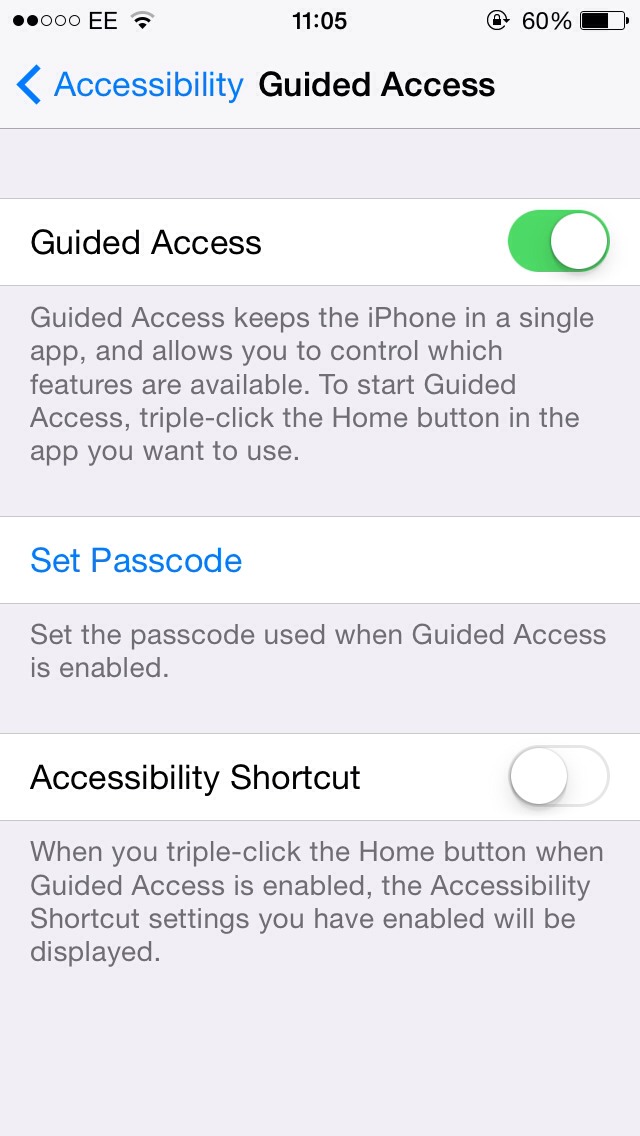
Switch this on so the button is green and select set passcode
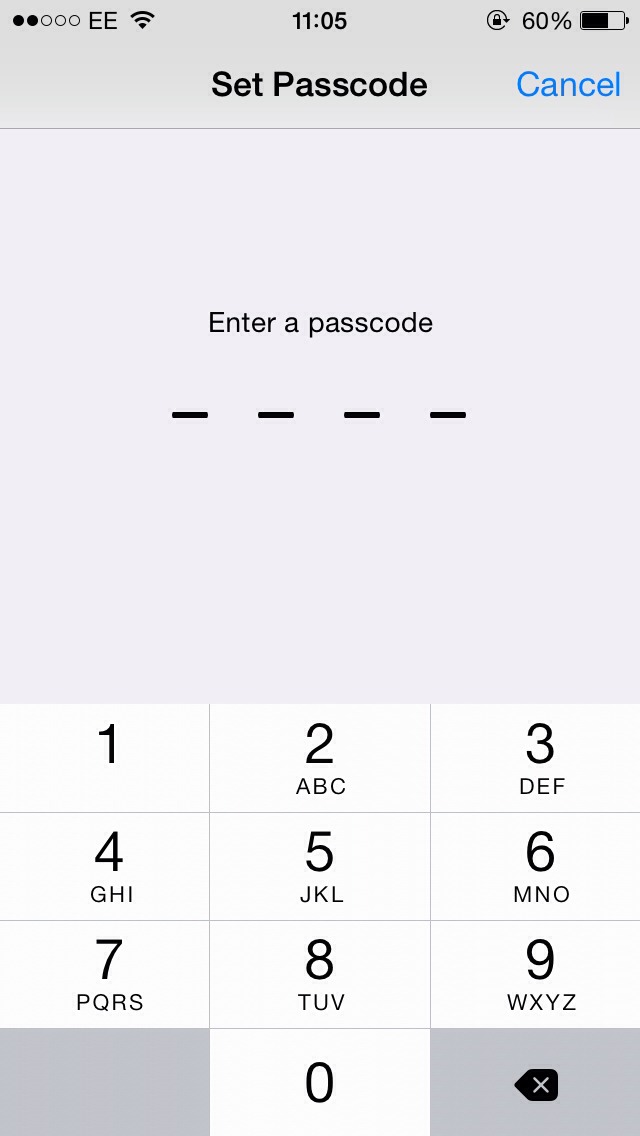
Create your desired passcode, once that is set up click back onto your home screen
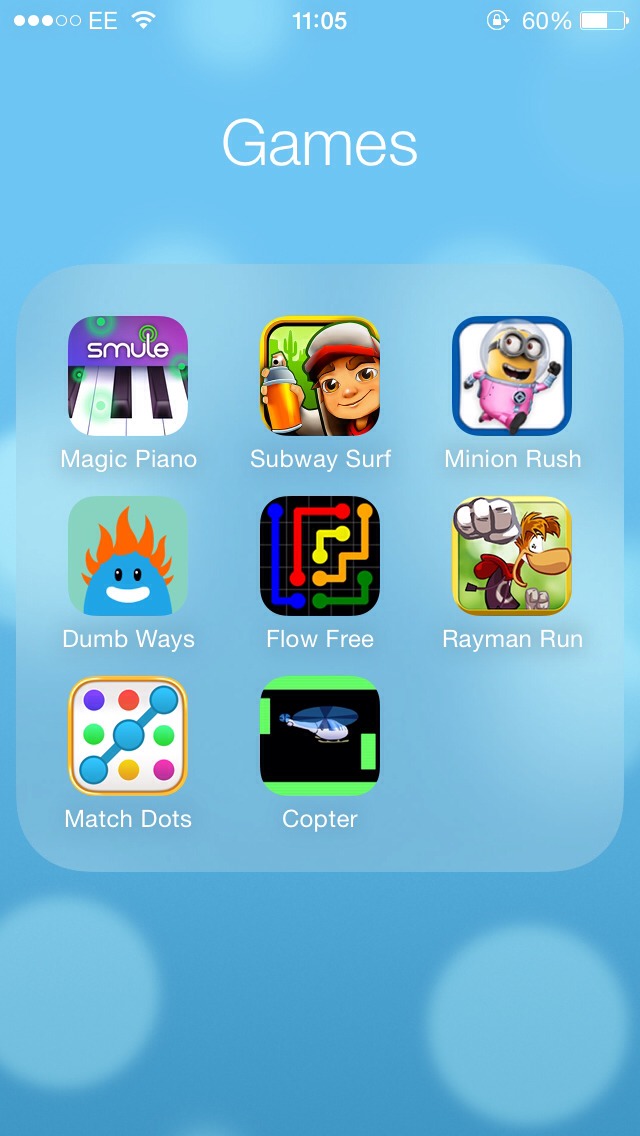
On the home screen select the desired game or app you want your child to be locked on preventing him or her to leave the app

Once you have opened the desired app triple click the home button and the guided access should turn on
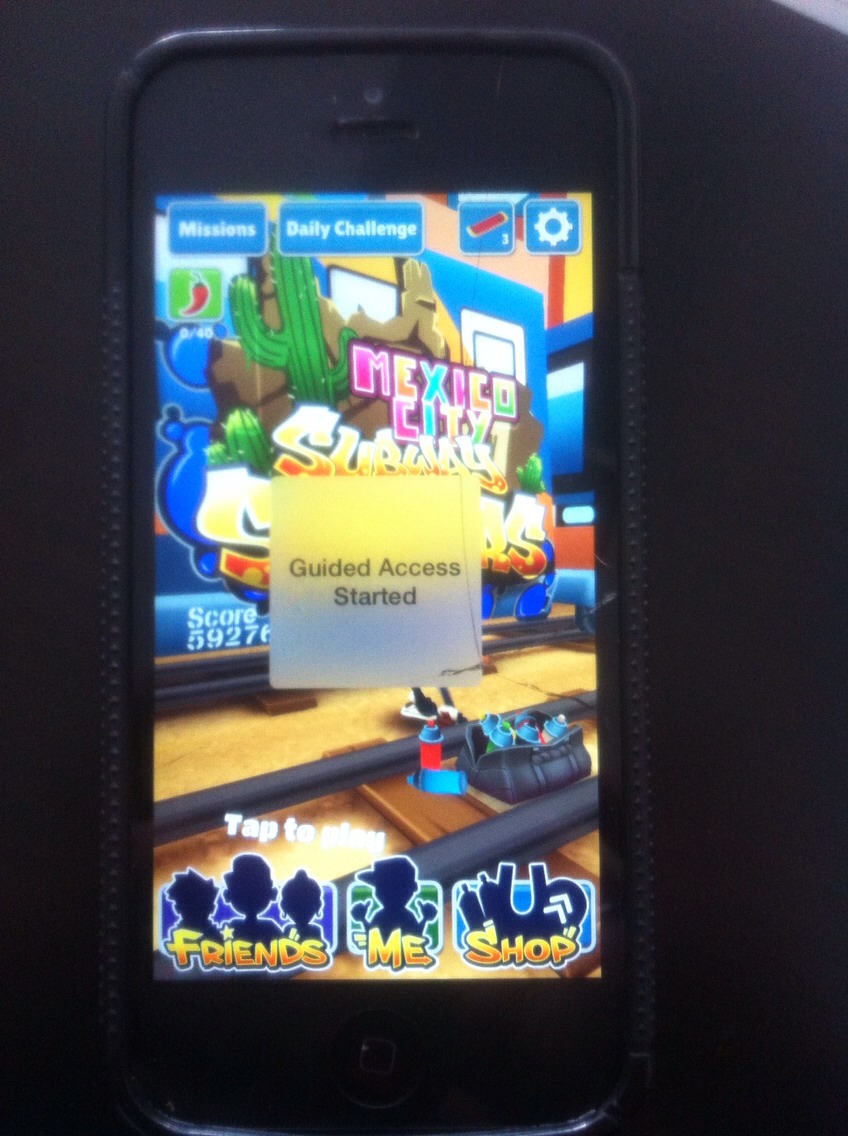
Once you have triple clicked on the home button it should start the guided access if not on the top right hand corner it should say start click this to start the guided access locking the app and not allowing the child to come off the app
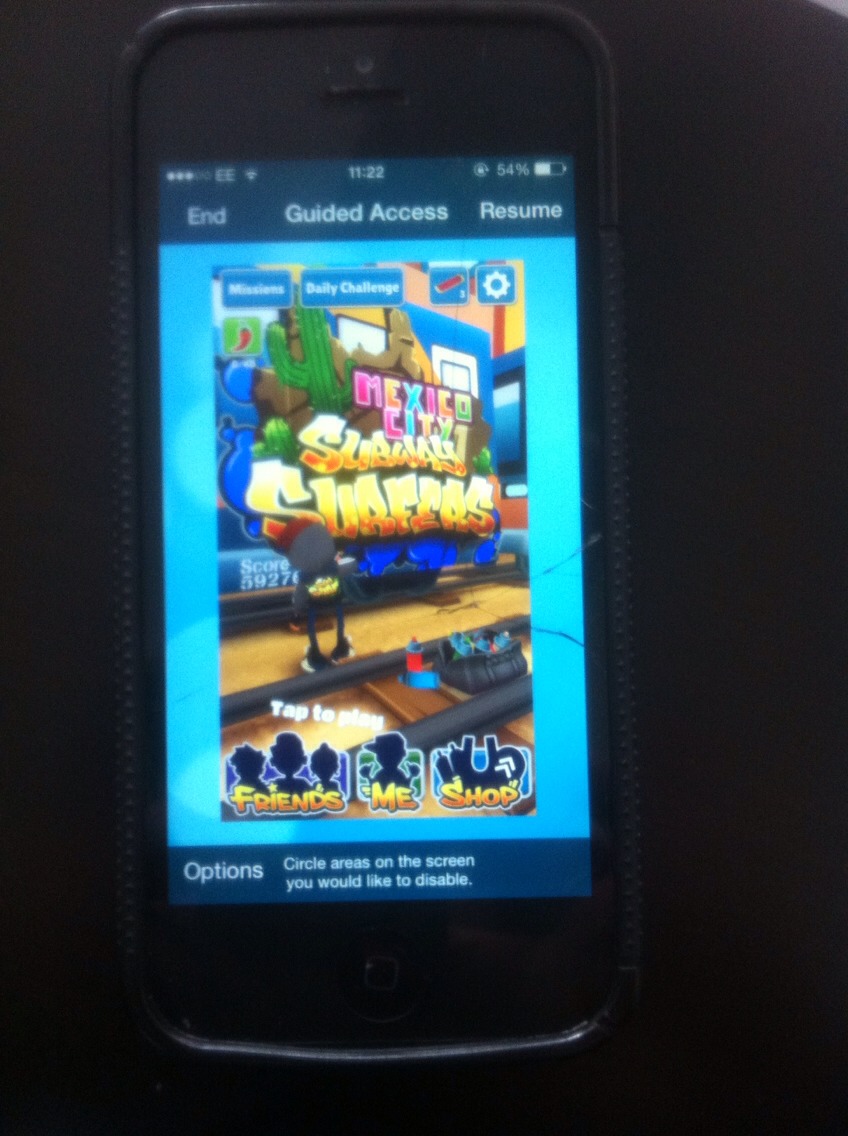
To end the guided access triple click the home button and your screen should look like this, press end to end the guided access. You will asked to enter the passcode you set up at the beginning
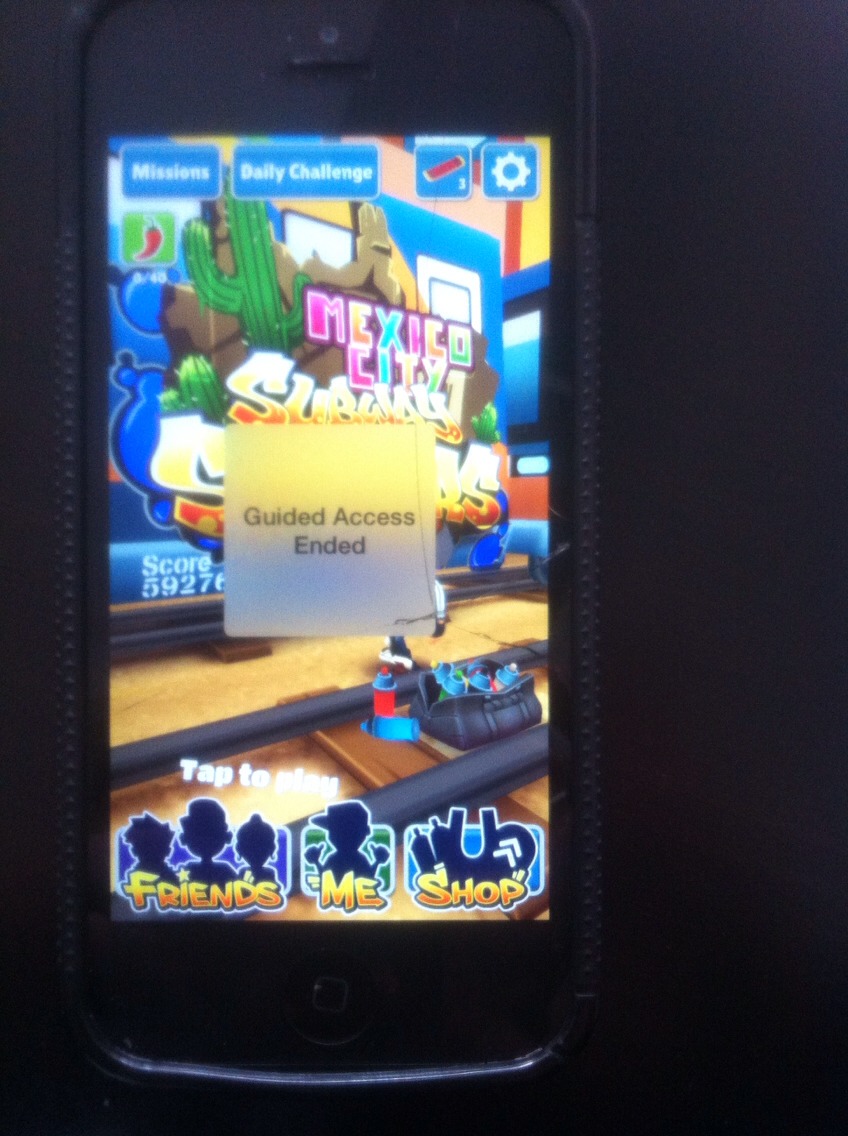
Once its ended the screen should tell you so
Hope this helps. sorry for the poor quality pics at the end, in guided access the phone doesn't let you screen shot.
This could be used for anything really, especially if you borrow your phone to someone too. Hope you enjoyed please like and share. :)
Natashaa
More tips like this

All
Big Bubbles With Dewey's Bubble Bath
93

Pets
Stinky Dog? No Time For A Bath? Try This Miracle Worker!
9

Family & Kids
Get Rid Of Diaper Rash The Non Toxic Way

Family & Kids
How To Upgrade Your At-home Movie Night
1.2K2

Family & Kids
3 Ingredient Baby Lotion! 💧🙌
6268

Parenting
👶36 Ingenious Things You’ll Want As A New Parent🚼🍼
1.3K22

Family & Kids
Prevent Lice With Tea Tree Oil!
20414

All
Make A Piggy Toy From A Sock ❤️❤️❤️
6038